SMTP Enumeration
Manual Enumeration (NC, Telnet)
#imap-enumeration
IMAP Enumeration
✅ 1. Connect to IMAP
nc 192.168.244.140 143✅ 2. Login
tag login jonas@localhost SicMundusCreatusEst✅ 3. List All Mail Folders
tag LIST "" "*"✅ 4. Select a Folder (INBOX)
tag SELECT INBOX✅ 5. Get Status Info
tag STATUS INBOX (MESSAGES)STATUS: checks metadata about a folder (without selecting it).(MESSAGES): asks for number of total messages.
✅ 6. Fetch Body of 1st Email
tag fetch 1 (BODY[1])FETCH: retrieves data for a message.1: message number (sequence ID).BODY[1]: fetches body part 1 (usually the plain text).
✅ 7. Fetch Headers & Body of Messages 2 to 5
tag fetch 2:5 BODY[HEADER] BODY[1]2:5: fetches messages 2, 3, 4, and 5.BODY[HEADER]: gives you the email headers (From, To, Subject, Date).BODY[1]: gives you body part 1.
#pop3-enumeration
POP3 Enumeration
✅ 1. Connect to POP3
telnet 192.168.244.140 110Or
for nc we need to add -C flag to force CRLF line endings which pop3 expects
nc -C 10.10.10.51 110✅ 2. Login
send user separately
USER jonasthen pass
PASS SicMundusCreatusEst✅ 3. List All Messages
LIST- Returns message IDs and sizes (e.g.,
1 1200,2 850). - The first number = message number, second = size in bytes.
✅ 4. Get Number of Messages
STAT- Returns
<message_count> <total_size_bytes>. - Example:
+OK 5 3900→ 5 messages, total 3900 bytes.
✅ 5. Retrieve First Email
RETR 1- Dumps the full email (headers + body).
- Ends with a single
.on its own line.
✅ 6. Retrieve Headers Only (without body)
TOP 1 0TOP <msg#> <n_lines>0= just headers, no body.TOP 1 5would give headers + first 5 lines of the body.
✅ 7. Retrieve Messages 2–5 (one at a time)
POP3 can’t fetch ranges like IMAP — you must do them individually:
RETR 2 RETR 3 RETR 4 RETR 5✅ 8. Quit Session
Escape character first to get back to telnet terminal
CTRL + AltGr + ]QUIT⚡ Key Difference vs IMAP:
- IMAP = powerful (folders, selective fetch, ranges).
- POP3 = basic (list, stat, retr, top, quit).
- No folder support → only the “inbox” is accessible.
#thunderbird-gui
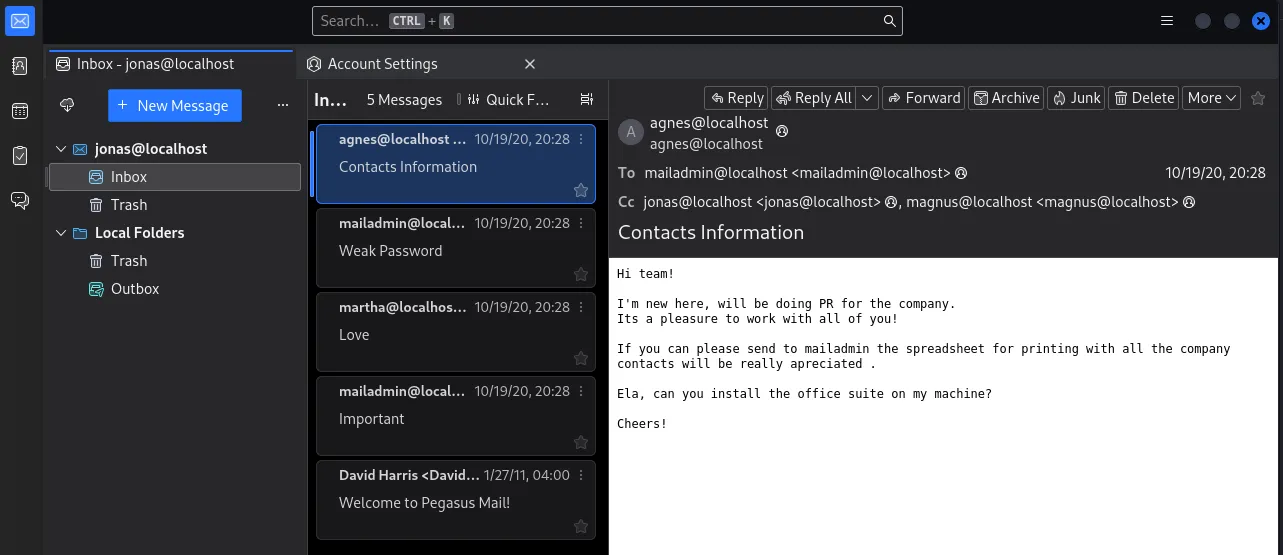
Automatic Enumeration (Thunderbird (GUI))
1- Get the EMAIL domain from Nmap scan

2- Go to account setup and use the creds you have with the email domain
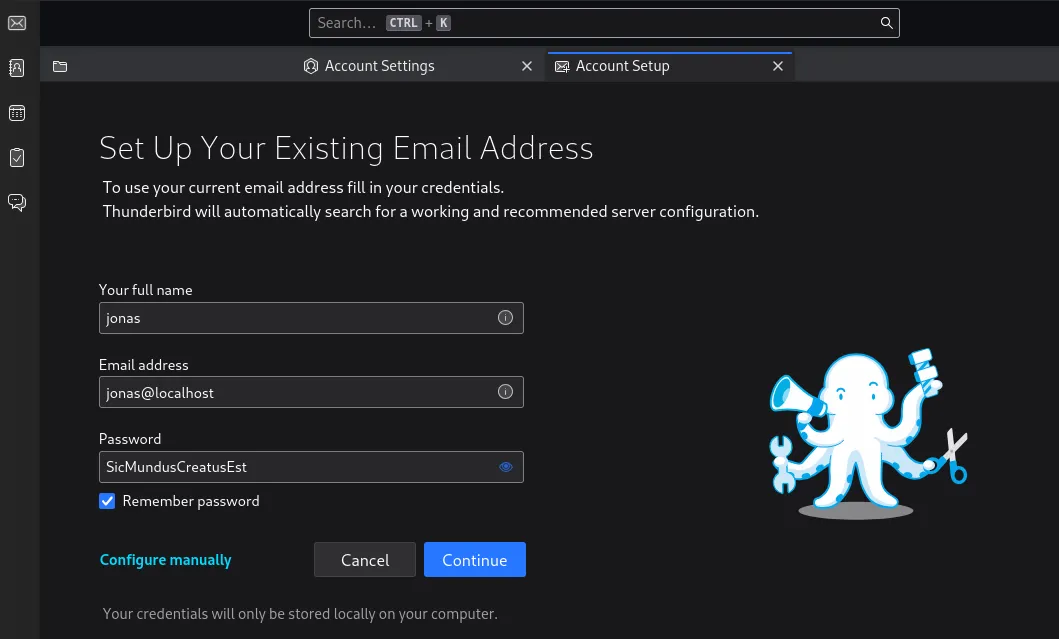
we used here jonas@localhost since the email domain is localhost
3- Change the mail configuration to the server details
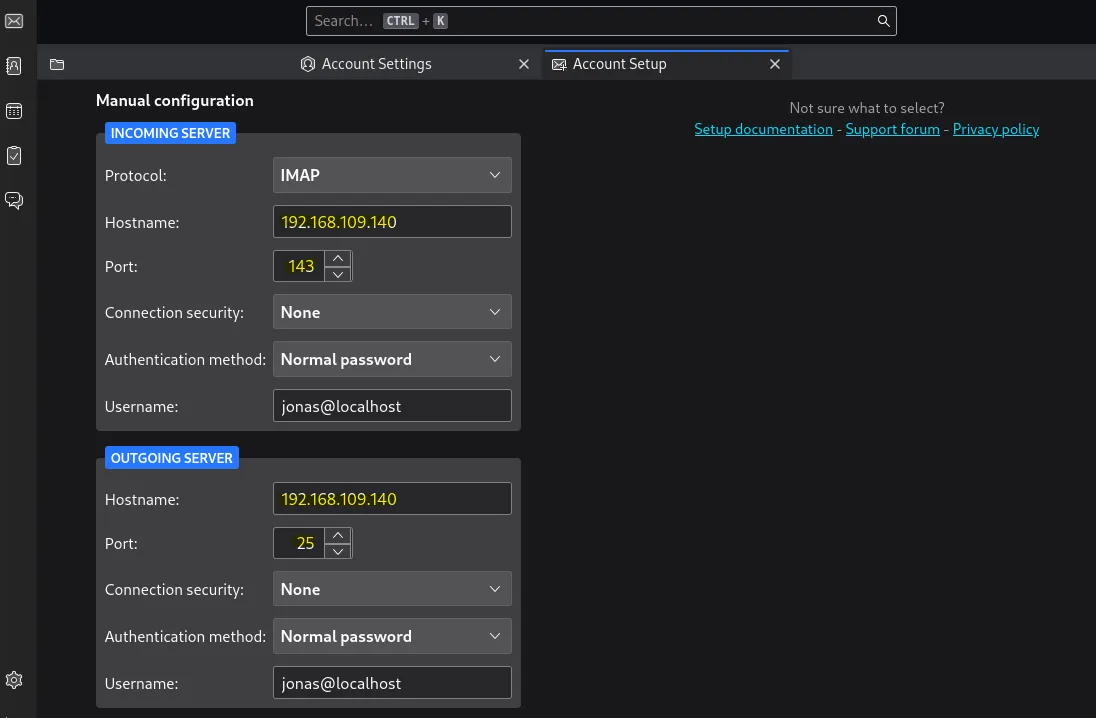
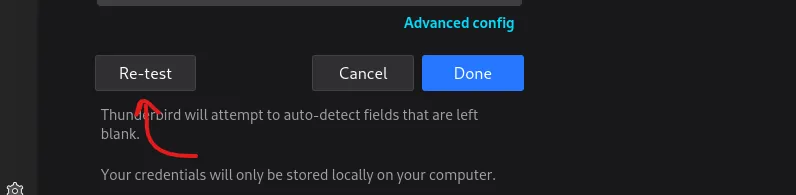
4- Test the config and connect